Example
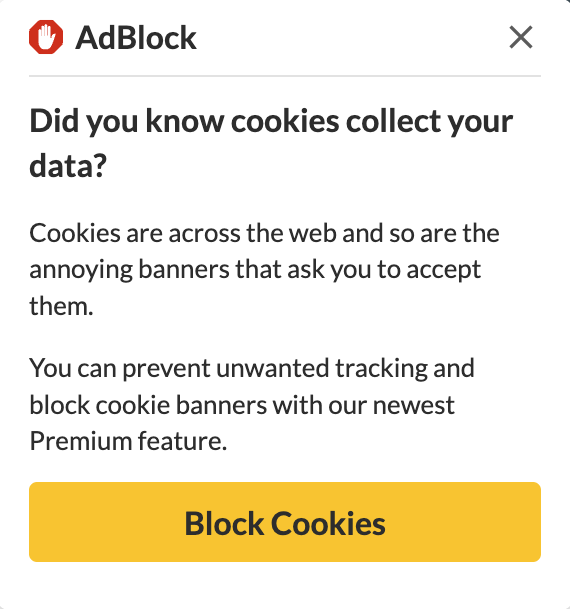
By default, AdBlock displays occasional messages to let you know about features or functionality that may improve your browsing experience. Here's an example:
How can I stop these messages from appearing?
If you don't want to receive these messages, you can disable them with the following steps:
-
Click the AdBlock icon on your browser's toolbar. If you don't see it, make sure it's installed and pinned: How to pin the AdBlock menu to your browser.
-
Click the gear icon on the menu to open the Options page.
-
Click the General tab.
-
Deselect the Allow AdBlock to show occasional promotional messages option.
Does this work for AdBlock's payment page too?
Yes. Turning off this setting stops the payment page from opening when AdBlock updates.
This setting can't stop the page from appearing when you first install AdBlock on a new device, browser, or browser profile. If you see it after installing, close the tab, then follow the steps above to prevent it from appearing during future updates.
You can read about when our payment page appears here: Why am I seeing your payment page?
I disabled the option. Why am I still seeing the notifications appear?
If you continue to see notifications after disabling this option, please report it to us: Submit a ticket.
Often times it’s a different ad blocker showing notifications, so please attach a screenshot of what you are seeing, including the URL/address bar and the AdBlock icon on your browser's toolbar.
Here are instructions for how to take a screenshot if you need them: How to provide a screenshot.