The steps below work in desktop browsers such as Chrome, Firefox, and Edge.
Allow ads on a specific page or set of pages
Allow ads on a site or page
-
Click the AdBlock icon on your browser's toolbar.
-
Click the More icon (three dots).
-
Click More pause options.
-
Adjust the site or page slider to match the URL of the page you want to add to your allowlist, then click Exclude.
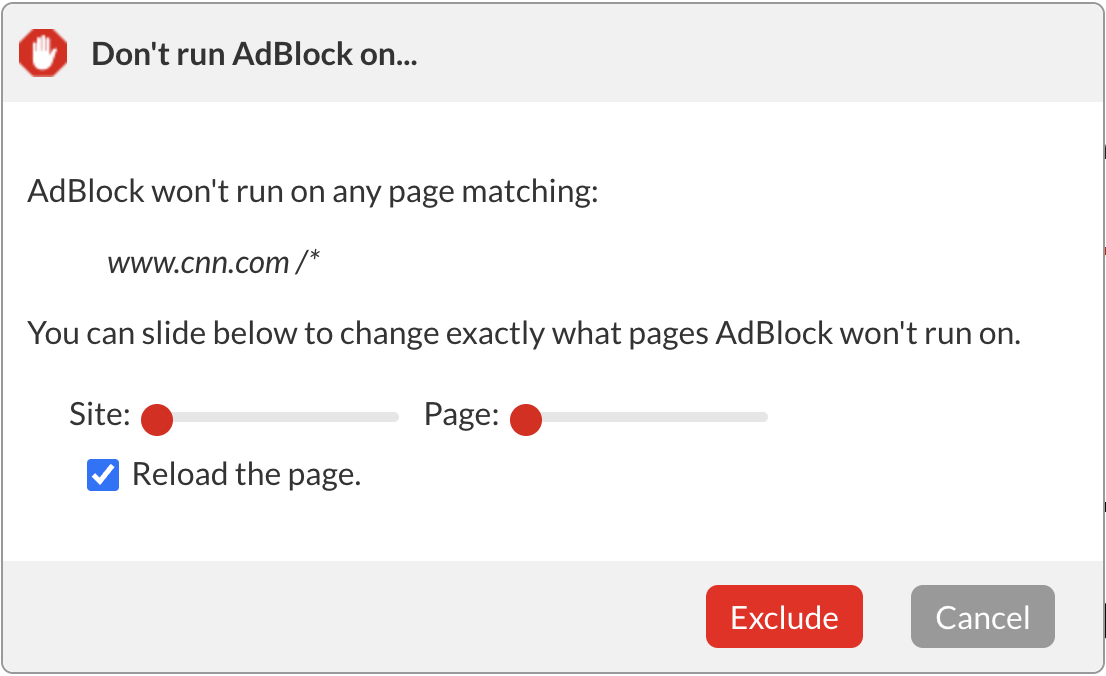
Once excluded, the filter rule will automatically appear in your list of custom rules on the Customize tab in AdBlock's Options.
The option lets you to allow ads on a specific page or set of pages, but still block ads everywhere else.
Resume ad blocking
-
Open the page where you want to block ads again.
-
Click the AdBlock icon on your browser's toolbar.
-
Click Resume Ad Blocking.
Remove the rule manually
-
Click the AdBlock icon on your browser's toolbar.
-
Click the gear icon.
-
Click on the Customize tab.
-
Next to "Manually edit your filters" click Edit.
-
Delete any line containing the name of the site URL.
-
Click Save.
-
Refresh the page you were viewing.
Pause from the context menu
Right click on the page to pause
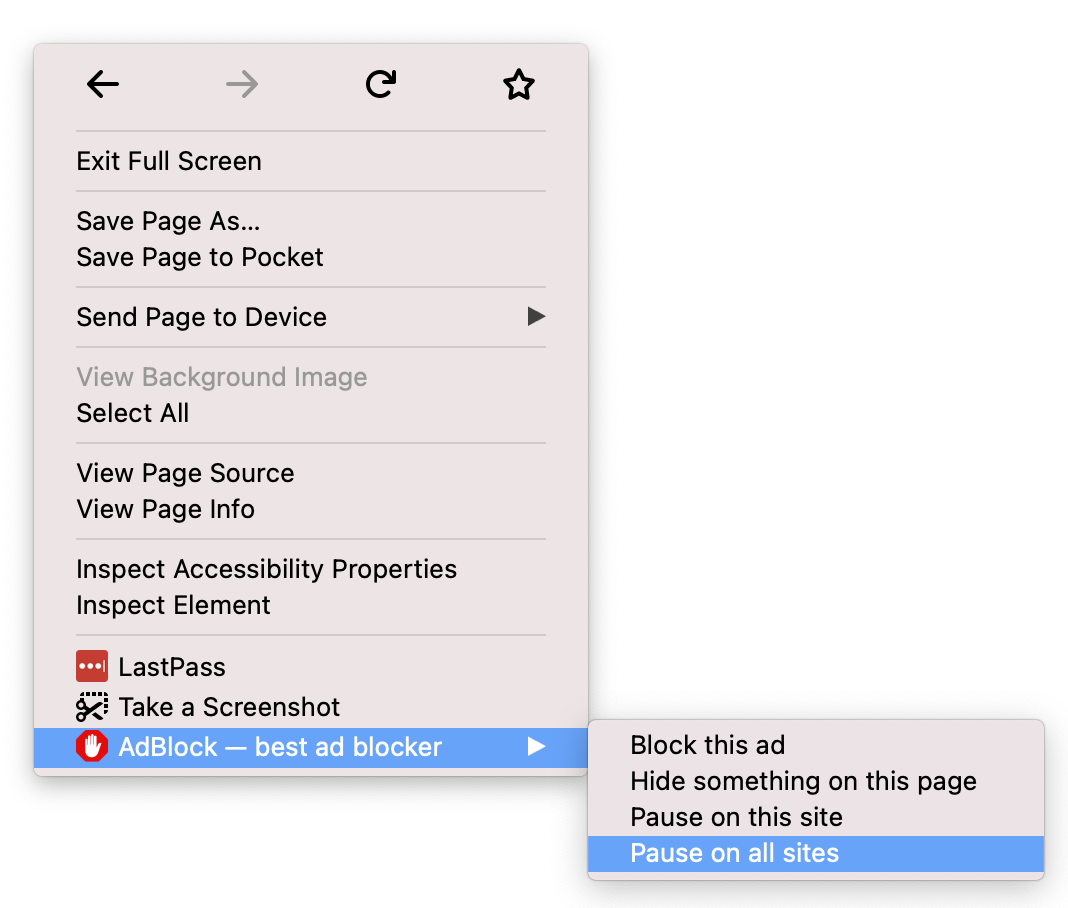
Right click on the page and select Pause on all sites or Pause on this site from the context menu. When you choose Pause on all sites, you will need to refresh any windows or tabs you already have open to apply the change. AdBlock will remain paused until the browser is restarted.
Right click on the AdBlock icon to pause
Alternatively, ads can be allowed on all sites by right-clicking on the AdBlock icon on the browser toolbar and selecting Pause on this site or Pause on all sites from the menu.
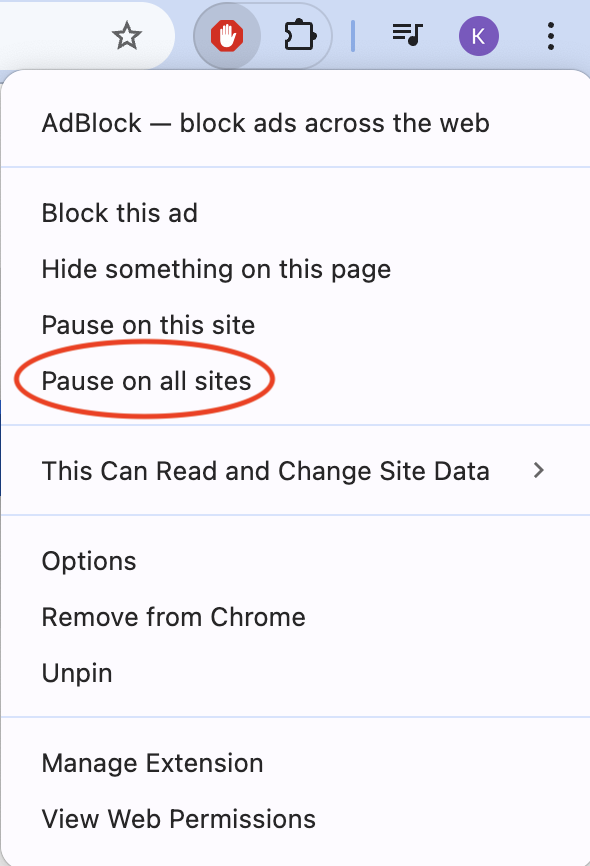
If you right click and don’t see the AdBlock option on the menu, go to the AdBlock icon > gear icon > General tab and enable Add items to the right click menu.
Resume ad blocking
Right click on the page and select Resume blocking ads from the context menu:
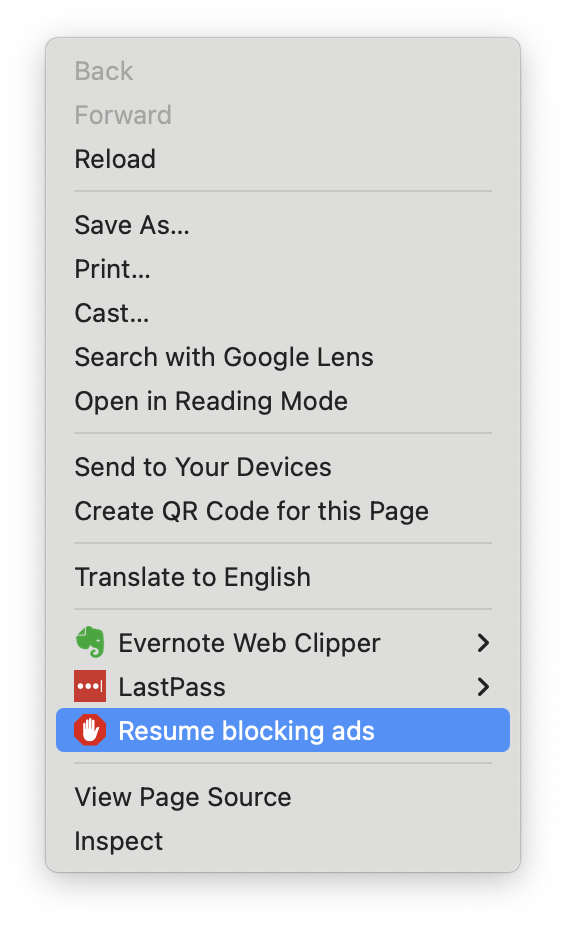
Alternatively, right click on the AdBlock icon on the browser toolbar and select Resume blocking ads.
Allow Ads Mode (only block ads on select sites)
If you prefer to see ads on most sites and want to block them only on selected pages, set AdBlock's default to "off." This is "Allow Ads Mode," showing ads on all sites by default and blocking them only where you choose.
AdBlock will remain in Allow Ads Mode until you turn it off.
Turn on Allow Ads Mode
-
Click the AdBlock icon on your browser's toolbar.
-
Click the gear icon.
-
Click the Customize tab.
-
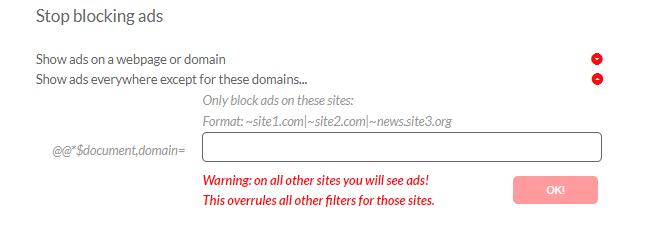
Under Stop blocking ads, select Show ads everywhere except for these domains.
-
Add any sites where you prefer to keep ads blocked. This overrides all other filters.