If you're seeing ads, a web page isn't working, or something else isn't quite right, the following information should help. If you're new to the AdBlock for Safari & VPN Mac app, don't forget to check out our user guide.
I don't see the AdBlock icon on the Safari toolbar
If you don't see AdBlock on your toolbar, be sure it's enabled to appear in the Safari toolbar.
I'm seeing ads on every site I visit
If you see ads on every site, try these common fixes first:
-
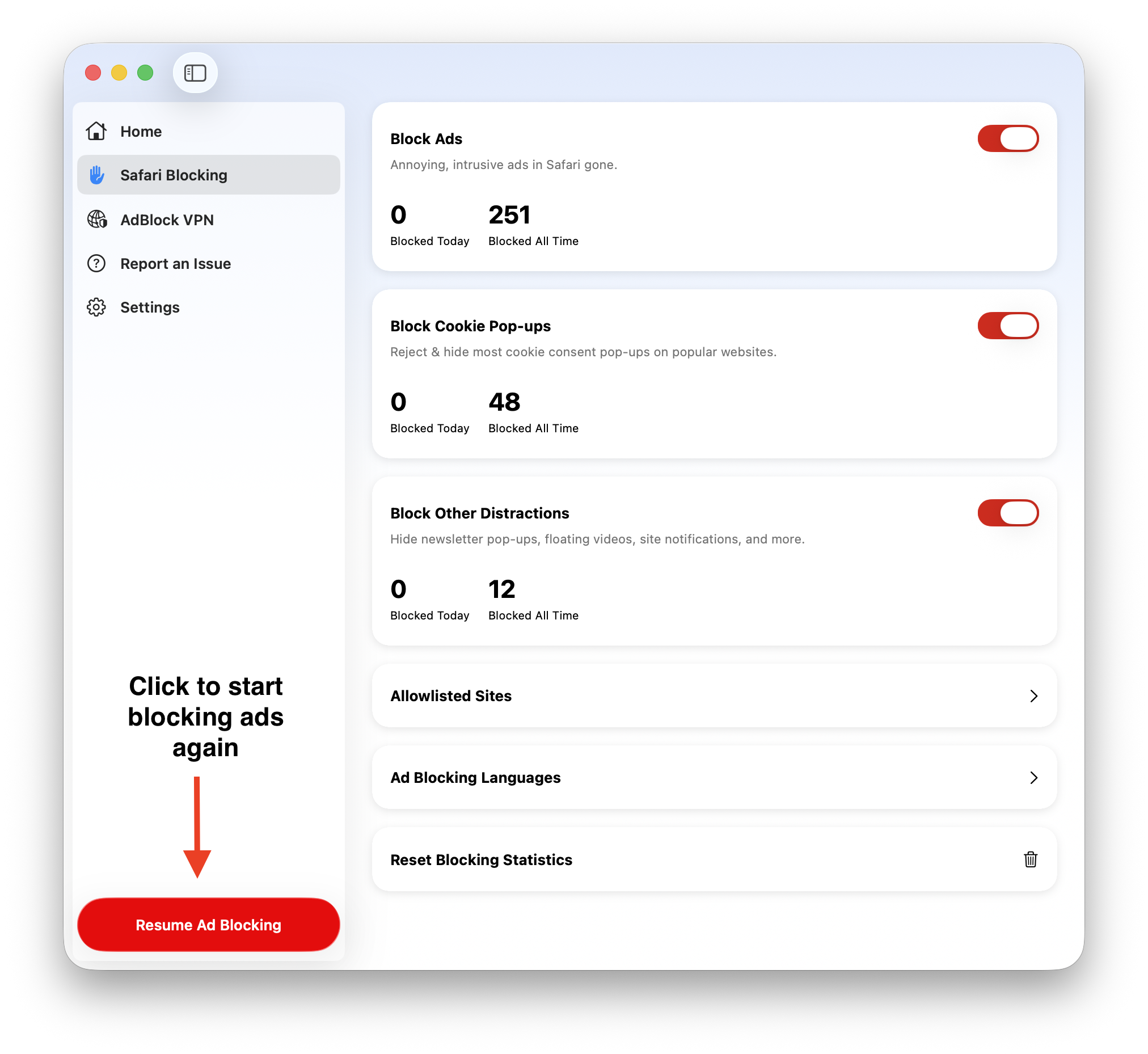
In the AdBlock app, go to the Safari Blocking tab and confirm Block Ads is toggled ON (blue).
-
In Safari, go to Safari > Settings > Websites > Content Blockers and make sure the option "When visiting other websites" is set to ON.
-
In Safari, go to Safari > Settings > Extensions and make sure the AdBlock is selected.
If those steps don't help, is AdBlock paused?
Open the AdBlock Mac app and look for a Resume Ad Blocking button at the bottom of the sidebar — if it's there, ad blocking is currently paused. Click it to resume blocking, then refresh any pages where ads were appearing.
I'm only seeing ads on one site
Is the site on your allowlist?
Ad blocking may be turned off for that specific site. Learn how to manage your allowlist here: Allowlisting, Pausing, and Disabling AdBlock for Safari.
Is the site using aggressive ad tech?
If the site isn't allowlisted, it may be using an aggressive form of ad technology that's particularly difficult to block. We see this used most often on free video and audio streaming sites and news sites.
If nothing else has helped, you're welcome to open a support ticket. Please include a link to a page where you're seeing ads, a screenshot of the ads (please capture the entire window, including the URL/address bar), and what troubleshooting steps you've already tried.
A web page isn't working or doesn't look right
First try pausing AdBlock. If that fixes the problem, the culprit is most likely an overzealous filter list blocking something it shouldn't. Go ahead and do what you need to do while AdBlock is paused, and remember to unpause when you're done. (If you want to be a good web citizen, you can also report the issue to the filter list authors so that it can be fixed for everyone.)
If pausing AdBlock doesn't change anything, then something else is breaking the site. For more suggestions, see this article.
A site is telling me to disable AdBlock
Instead of disabling AdBlock, the better solution is to pause AdBlock or add the site to your allowlist: Allowlisting, Pausing, and Disabling AdBlock for Safari.
I need help with something else
Feel free to open a support ticket. If applicable, please include a link to a page where you're seeing the issue, a screenshot of the issue if possible (please capture the entire screen), and what troubleshooting steps, if any, you've already tried.