Using iOS? See User Guide: AdBlock for Safari + VPN iOS app
What is allowlisting?
Most of the time, AdBlock automatically blocks annoying and intrusive ads for you. But sometimes you want to:
-
Support a favorite creator or website
-
Fix pages that don’t load correctly
When you allowlist a site, AdBlock lets ads show there while continuing to block ads everywhere else.
Allowlisting sites
Use the AdBlock toolbar icon to allow ads on a site you’re currently viewing.
Use the AdBlock for Safari Mac app to add sites you’re not currently visiting.
Using the AdBlock toolbar icon
Add a site to your allowlist (toolbar icon)
-
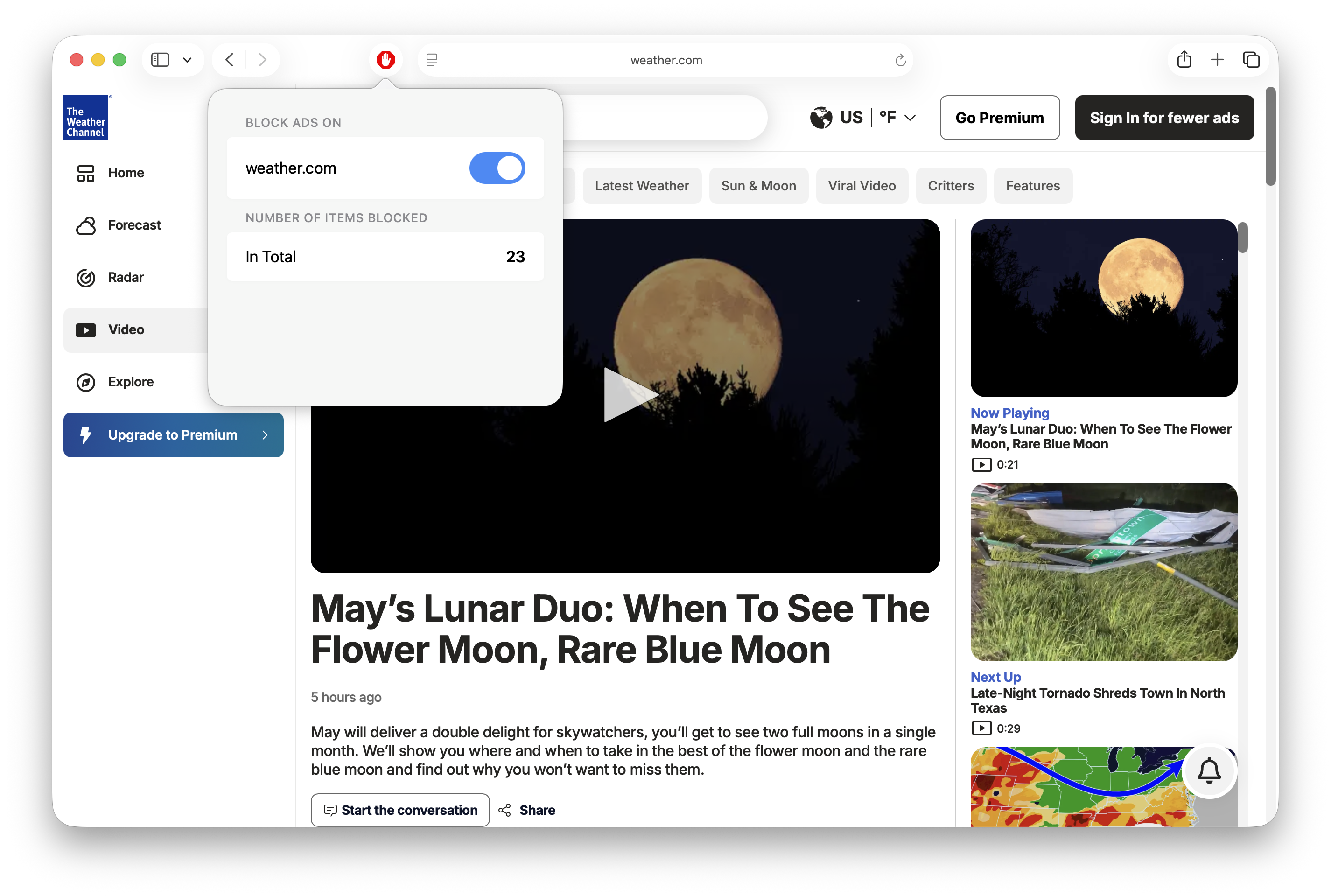
Click the AdBlock icon on the Safari toolbar.
-
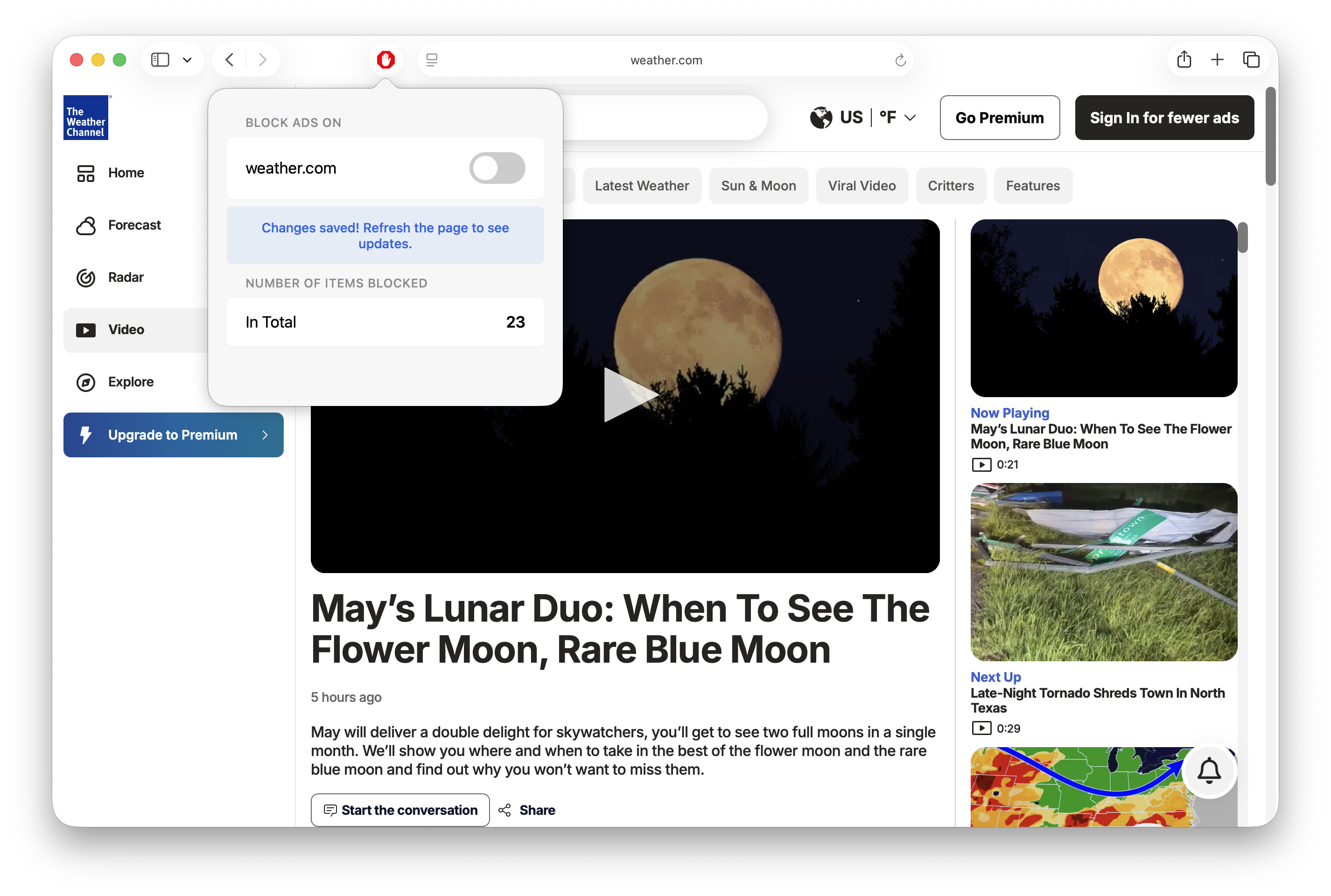
Click to toggle ad blocking OFF. The toggle will turn gray.
-
Refresh the page for the changes to take effect.
|
Blue toggle - Ads are being blocked |
Gray toggle - Site is allowlisted |
|---|---|
|
|
Remove a site from your allowlist (toolbar icon)
-
Click the AdBlock icon on the Safari toolbar.
-
Click to toggle ad blocking ON. The toggle will turn blue.
-
Refresh the page for the changes to take effect.
Pausing AdBlock: temporarily allow ads everywhere
When you pause AdBlock, ads are temporarily allowed on every site you visit. This is helpful when you want to browse without blocking for a short time.
To pause:
-
Open the AdBlock app.
-
Click Pause Ad Blocking.
-
Select your timeframe, then click Pause.
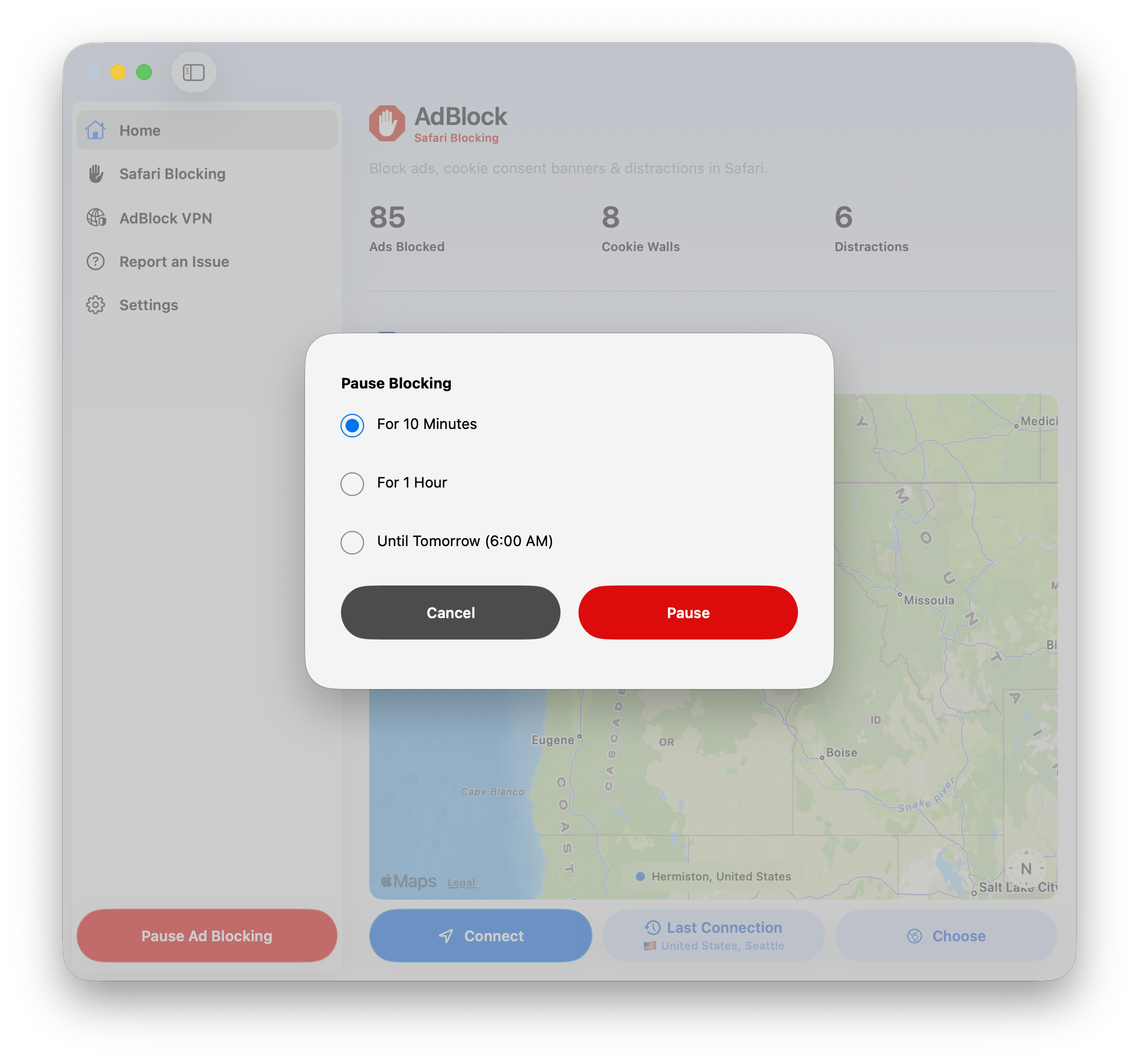
To start blocking ads again, click Resume Ad Blocking.
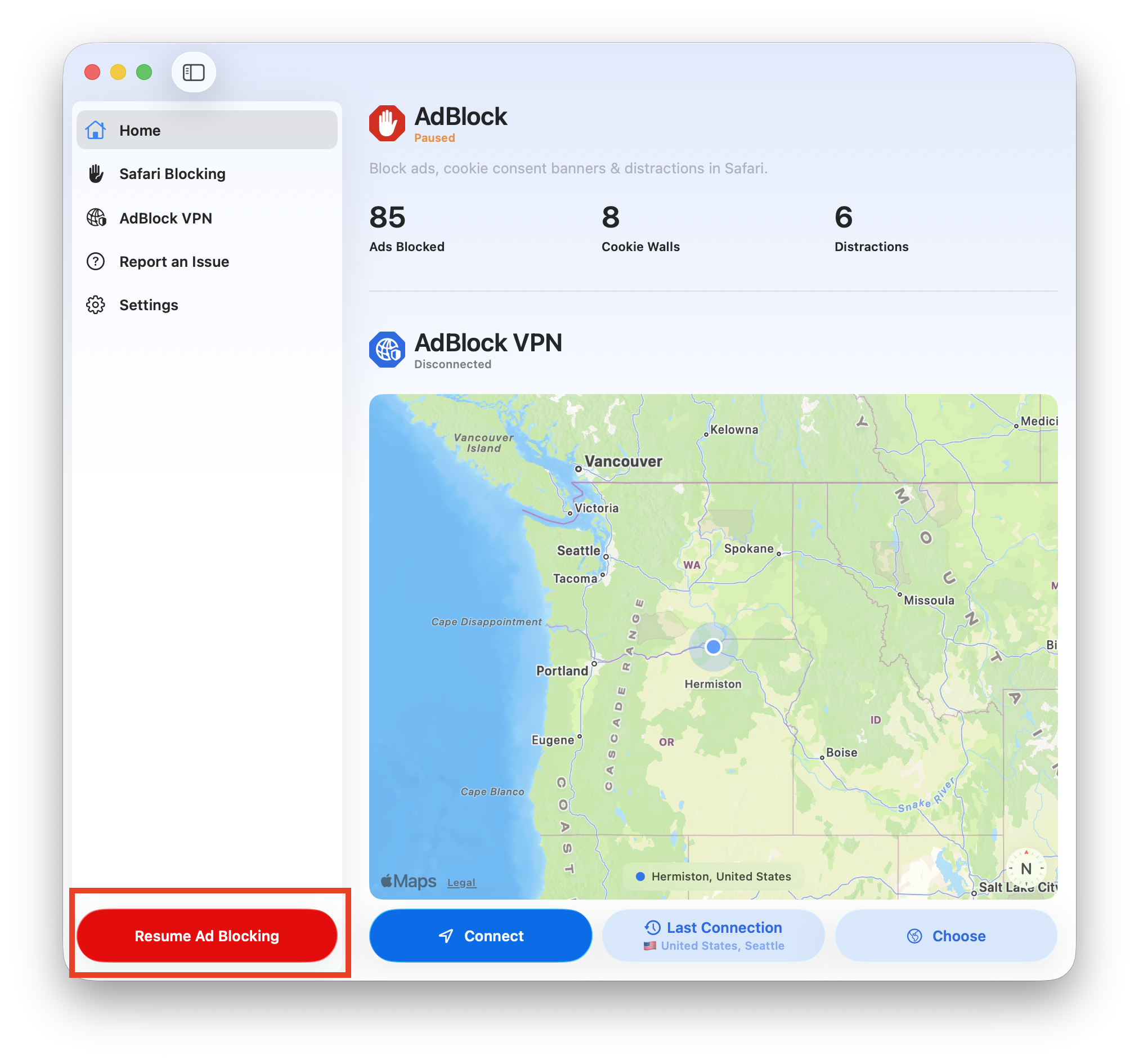
While pausing is helpful for a quick task, we recommend allowlisting specific sites so you stay protected on the other sites you visit.
Disabling AdBlock
In almost all cases, you don’t need to disable AdBlock completely. However, you may want to disable AdBlock as a temporary troubleshooting step if pausing AdBlock doesn’t help.
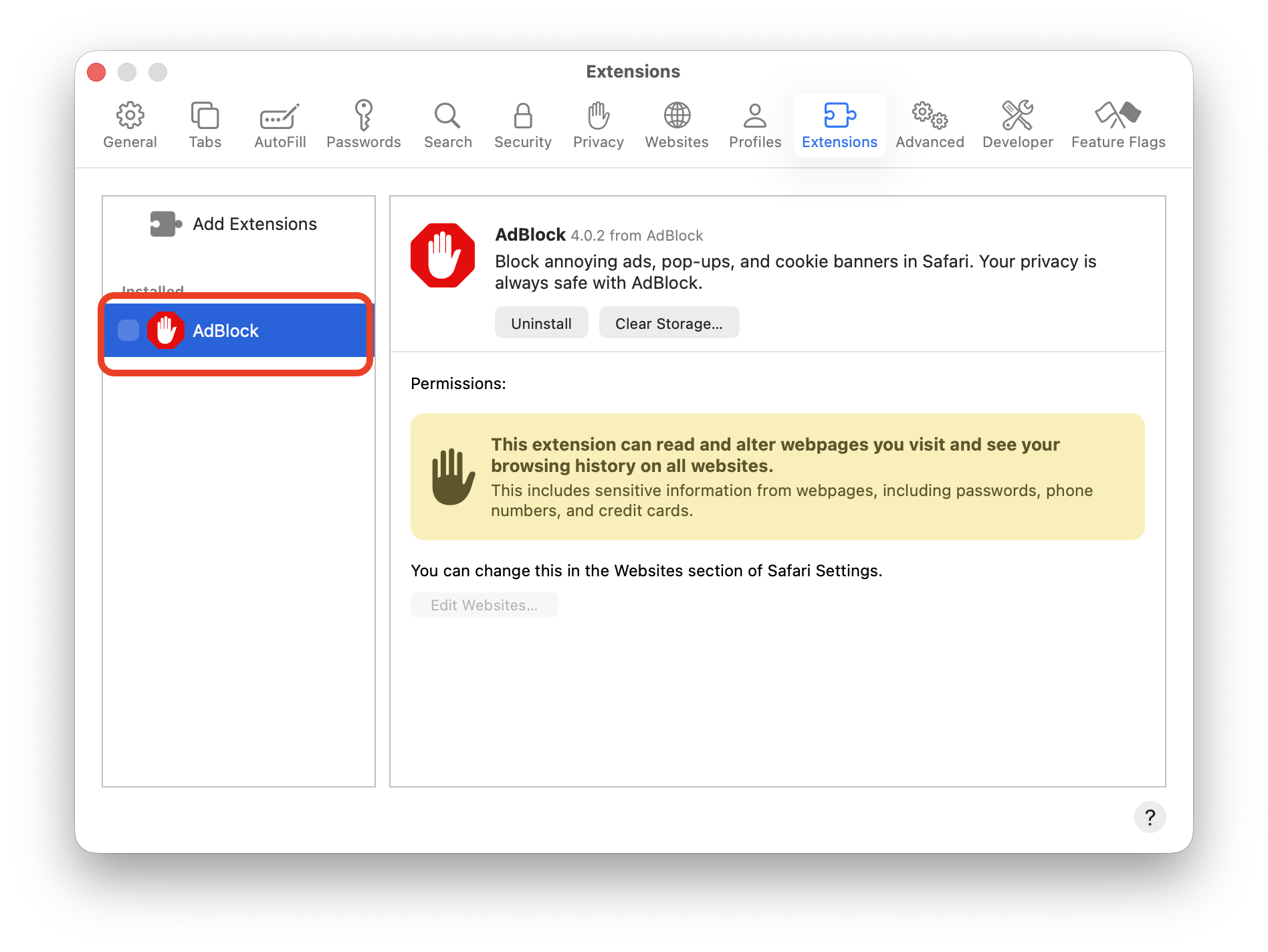
To disable AdBlock completely, go to Safari > Settings > Extensions and uncheck AdBlock.
When unchecked, the AdBlock extension is disabled, and no ads are blocked.