Welcome to the all-new AdBlock for Safari & VPN. We’ve redesigned the experience to give you better control over your privacy and browsing experience, combining our powerful ad blocker and AdBlock VPN into one seamless app.
How to Use AdBlock for Safari & VPN
Everything you need to know to get the most out of your Mac app.
How do I stop ads and pop-ups?
AdBlock works in layers. You can choose exactly what you want to hide:
To stop standard ads: Open the app, go to Safari Blocking, and toggle Block Ads to ON (blue).
To stop "Accept Cookie" banners: Toggle Block Cookie Pop-ups to ON.
To stop newsletter and "Sign up" pop-ups: Toggle Block Other Distractions to ON.
How do I pause ad blocking on all sites?
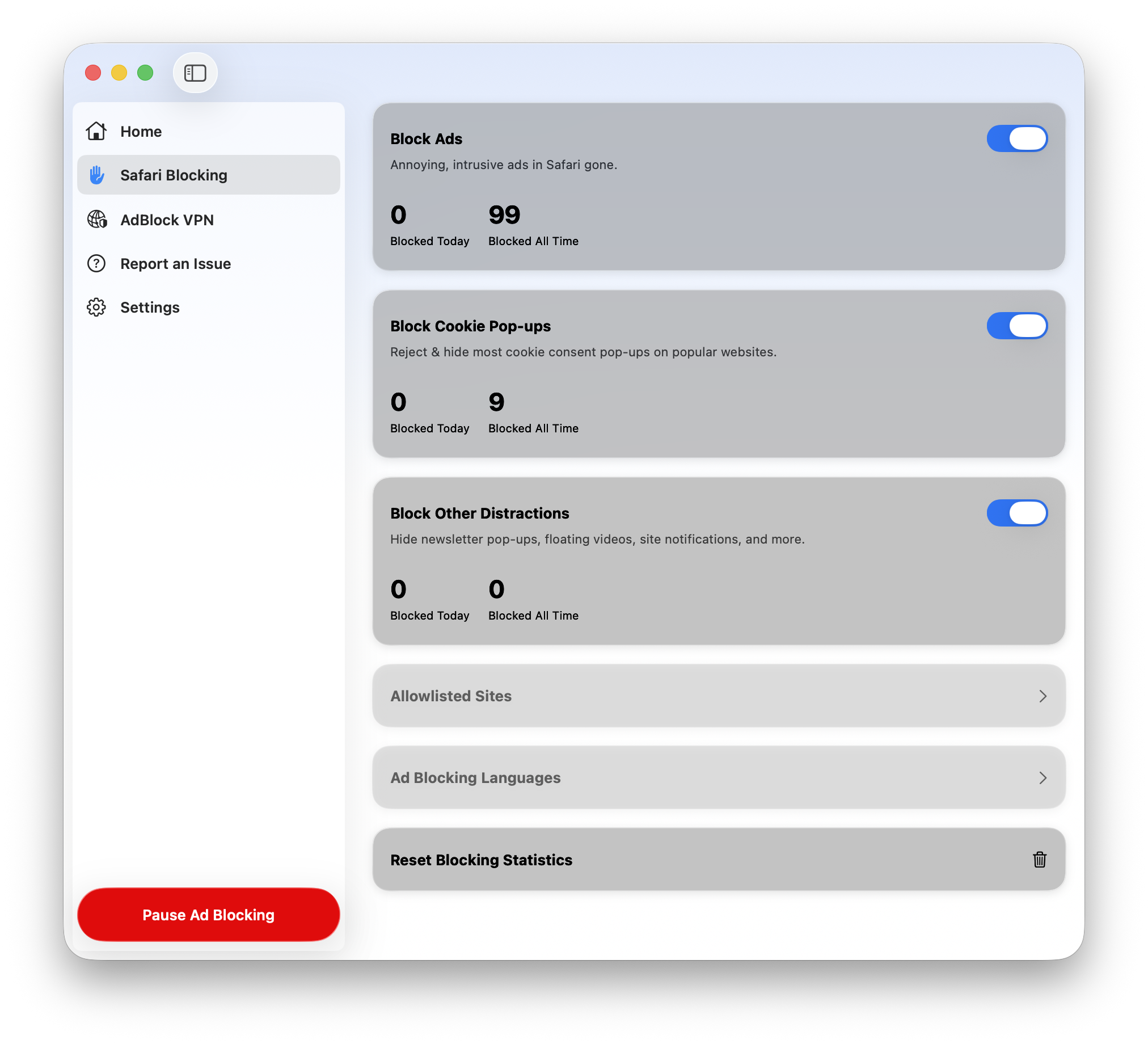
Click Pause Ad Blocking at the bottom of the app, then choose how long to pause: 10 Minutes, 1 Hour, or Until Tomorrow (6:00 AM). Click Pause to confirm — ad blocking will automatically resume when the selected time is up, or you can click Resume Ad Blocking anytime to turn it back on early.
How do I allow ads on a specific website?
If a website asks you to turn off your ad blocker, or if you want to support a creator, you don't have to turn AdBlock off completely.
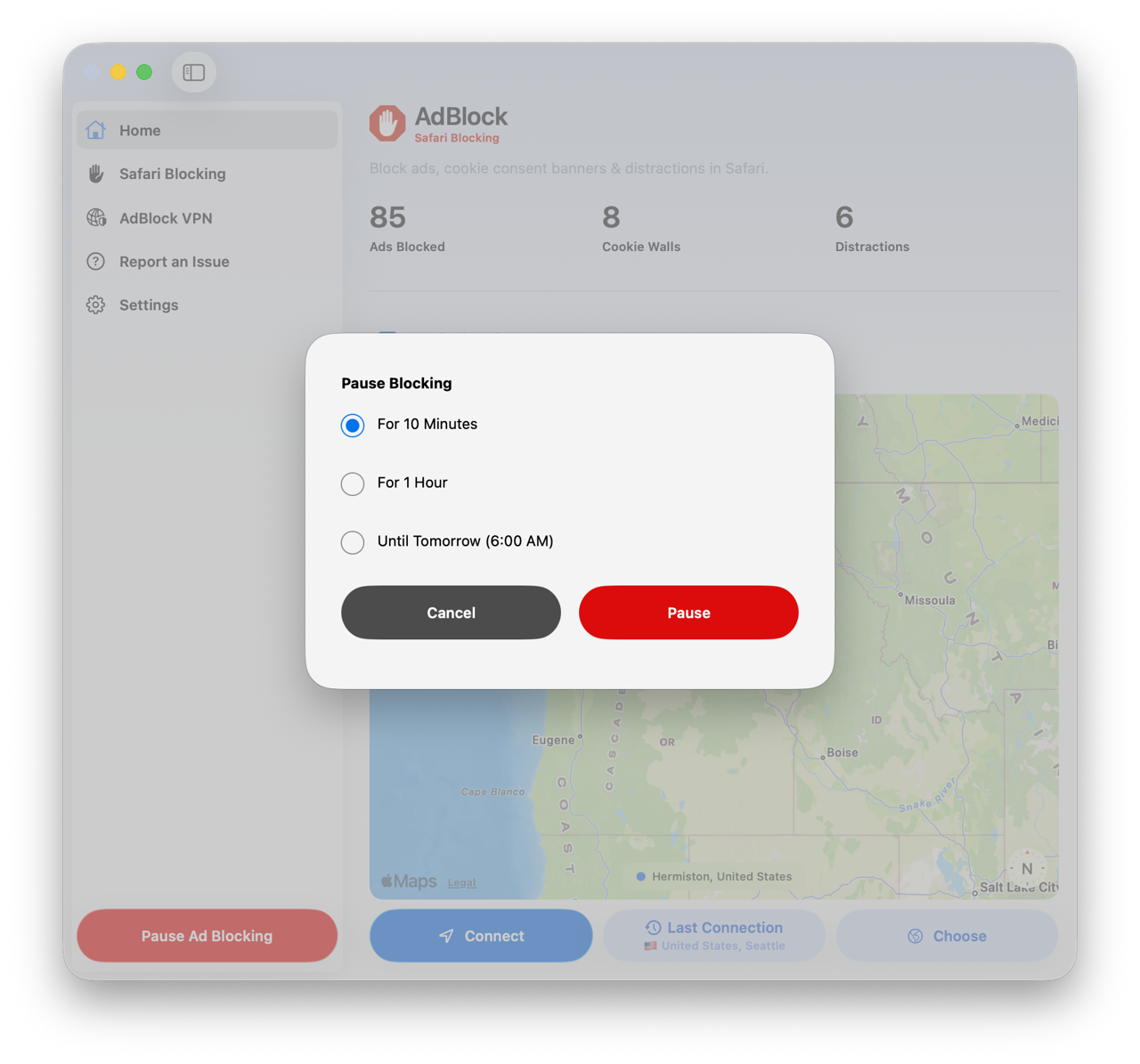
The Fast Way: While on that website in Safari, click the AdBlock icon in your browser toolbar. Next to the website, toggle the switch off for that site.
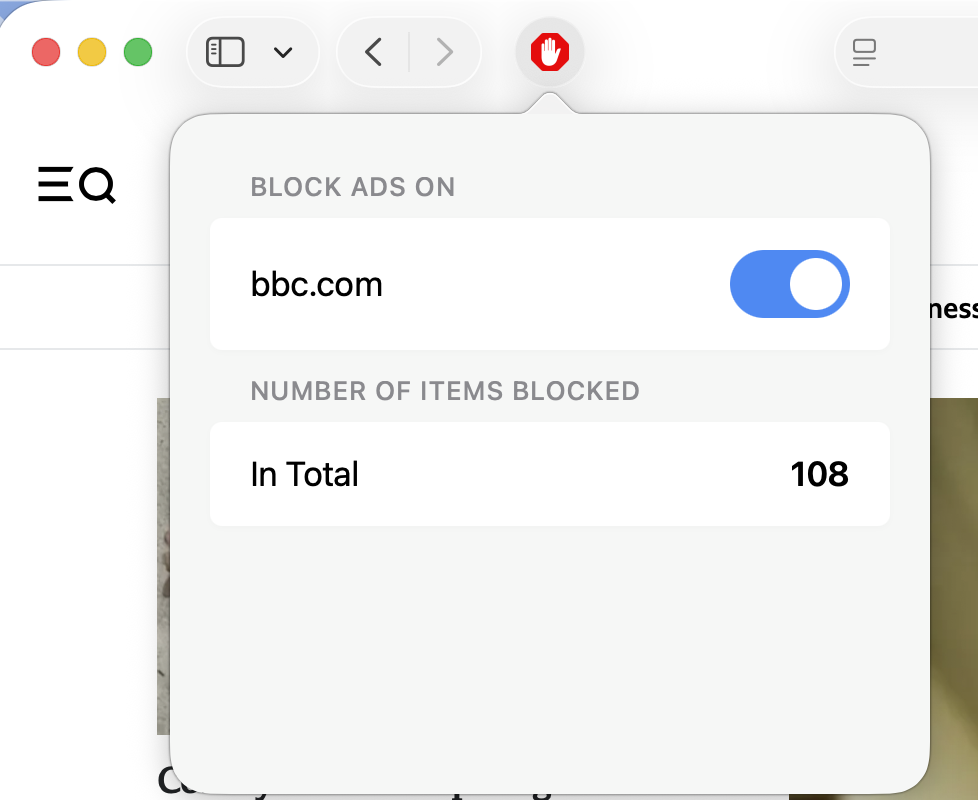
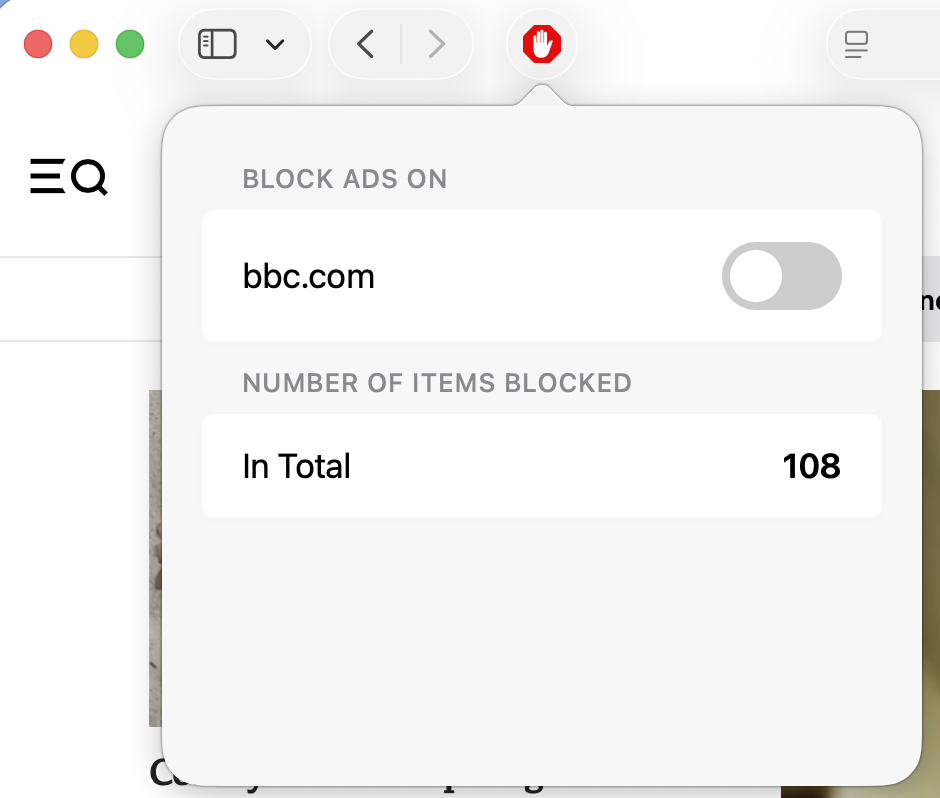
The Manual Way: In the app, go to Safari Blocking > Allowlisted Sites. Type in the website address.
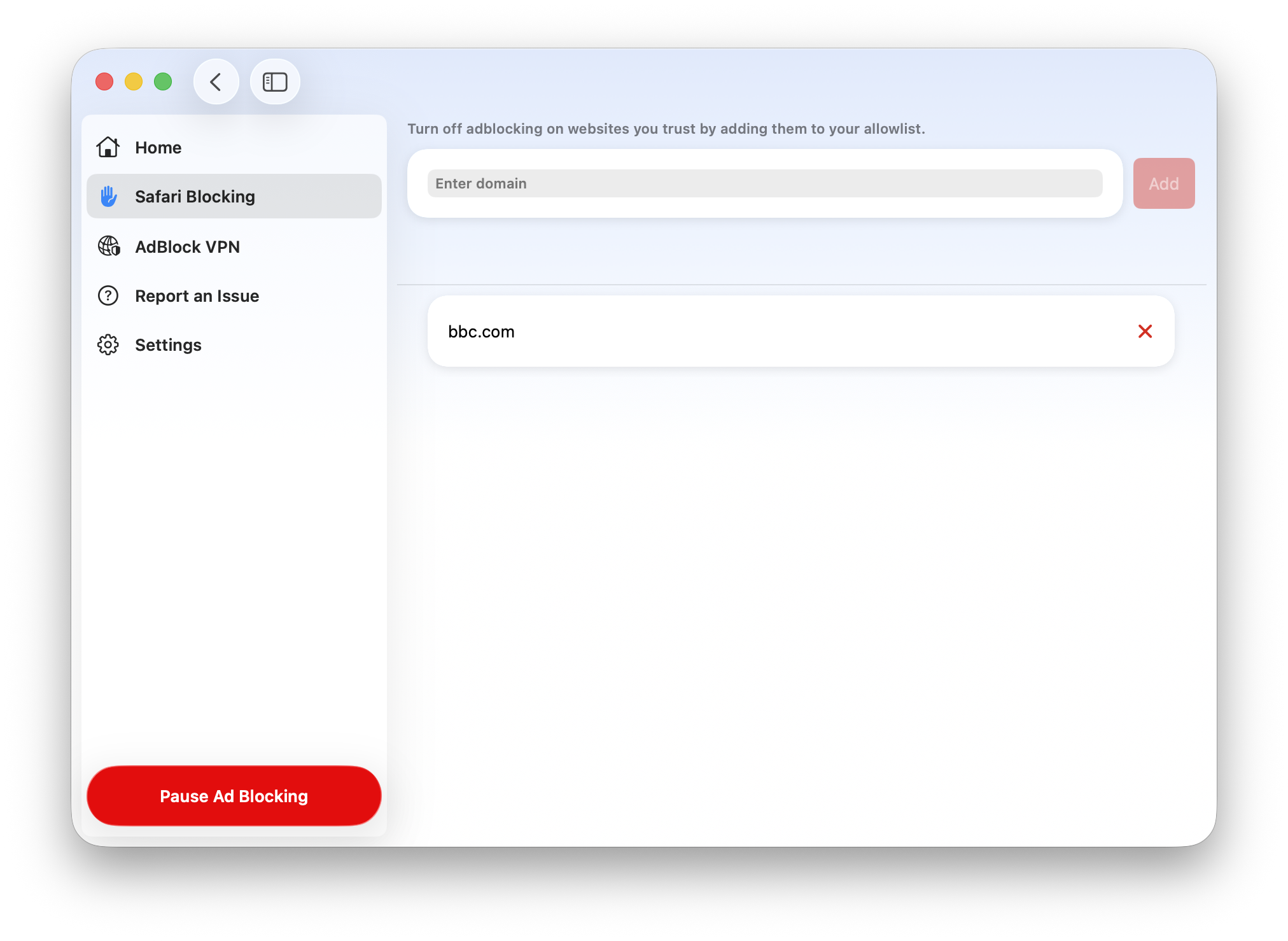
With both methods, the site is added to your Allowlisted Sites list, and AdBlock will allow ads there until you remove it — either by toggling the switch back on or by deleting it from Safari Blocking > Allowlisted Sites.
What do I do if a website isn't working?
Sometimes ad blockers can make a page look "broken" or display incorrectly.
Step 1: Try adding the site to your allowlist. Refresh the website to see if it fixes the issue.
Step 2: If that fixes the site, go to the Report an Issue tab. Select the type of problem and hit Submit. This tells our developers exactly what to fix.
How do I use the VPN?
The VPN hides your location and encrypts your data. It also blocks additional ads and trackers across your device.
To Connect: Go to the Home screen and click the blue Connect button.
To Change Countries: Click the Choose button on the Home screen map to pick a different server location.
To stay safe from malware: Go to the AdBlock VPN tab and turn on Threat Protection. This adds an extra layer of protection against dangerous websites.
For more detailed information on using our VPN, see: User Guide: AdBlock VPN
Does the app need to be open?
It depends on which features you use:
VPN: The app must be open for the VPN to work. If you use the VPN regularly, we recommend going to Settings and turning on Launch at Login so it's always running and ready.
Safari ad blocking: This works even when the app is closed — no need to keep it running.
Can I control where AdBlock icons appear?
To clean up your Dock: Turn on Hide Dock Icon in Settings. This removes the app from your Dock when it's not actively open.
To remove the menu bar icon: Quit the app. AdBlock will continue blocking ads in Safari even when the app is closed.
To remove the Safari toolbar icon: Go to Safari > Settings > Extensions and deselect AdBlock. Note that removing this icon will disable ad blocking in Safari.
Managing your Account
To Log Out or Change Users: Go to the Settings tab. Under Account, you will see your email address and a Log Out button.
To Manage your Subscription: Click Manage AdBlock Account in the Settings tab to change your payment info or upgrade to Premium.