
Note: The methods described below work in desktop browsers on Chrome, Firefox, and Edge.
Allow ads on a specific page or set of pages
Allowing ads on a site or page
-
Click the AdBlock icon on your browser's toolbar.
-
Click the More icon (three dots).
-
Click More pause options.
-
Adjust the site or page slider to match the URL of the page you want to add to your allowlist, then click Exclude.
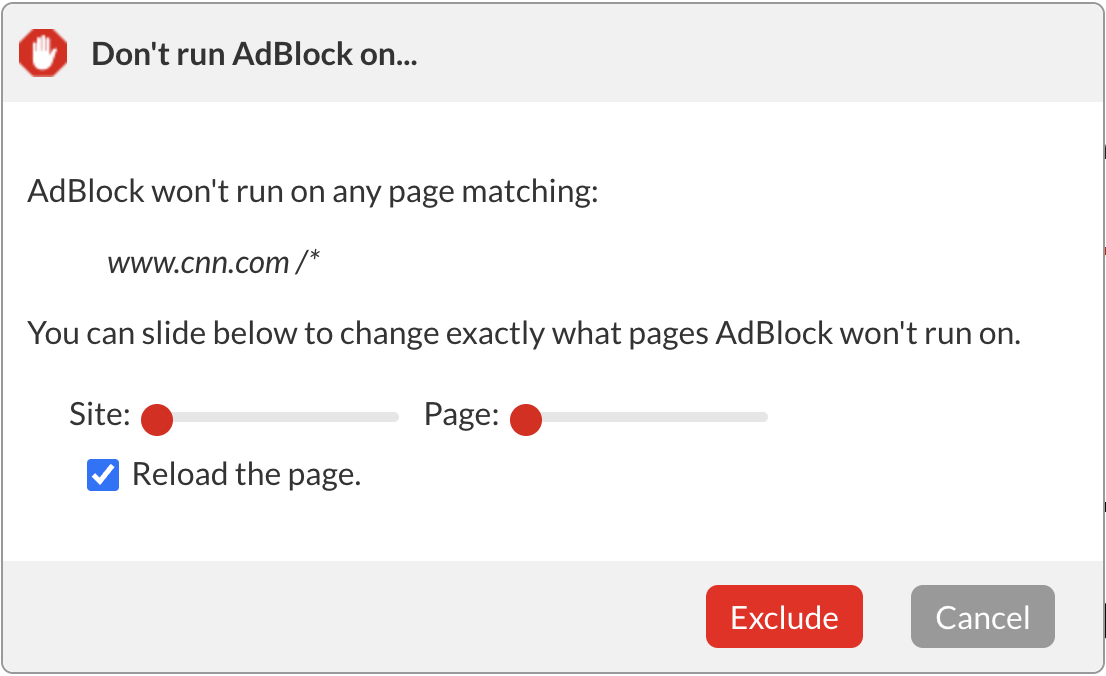
Once excluded, the filter rule will automatically appear in your list of custom rules on the Customize tab in AdBlock's Options.
The option allows you to allow ads on a specific page or set of pages, but will still block ads everywhere else, including on other pages on the same site.
Resuming ad-blocking
-
Open the page where you want to block ads again.
-
Click the AdBlock icon on your browser's toolbar.
-
Click on Resume Ad Blocking.
Removing the rule manually
-
Click the AdBlock icon on your browser's toolbar.
-
Click the gear icon.
-
Click on the Customize tab.
-
Next to "Manually edit your filters" click Edit.
-
Delete any line containing the name of the site URL.
-
Click Save.
-
Go back to the page you were viewing and reload it.
Pause from the context menu
Tip: If you don't see the AdBlock option on the right-click menu, make sure the option "Add items to the right click menu" is enabled on the General tab in AdBlock's Options.
Pausing
Right-click on the page and select either Pause on all sites or Pause on this site from the context menu. When you choose Pause on all sites, you will need to refresh any windows or tabs you already have open to apply the change. AdBlock will remain paused until the browser is restarted.
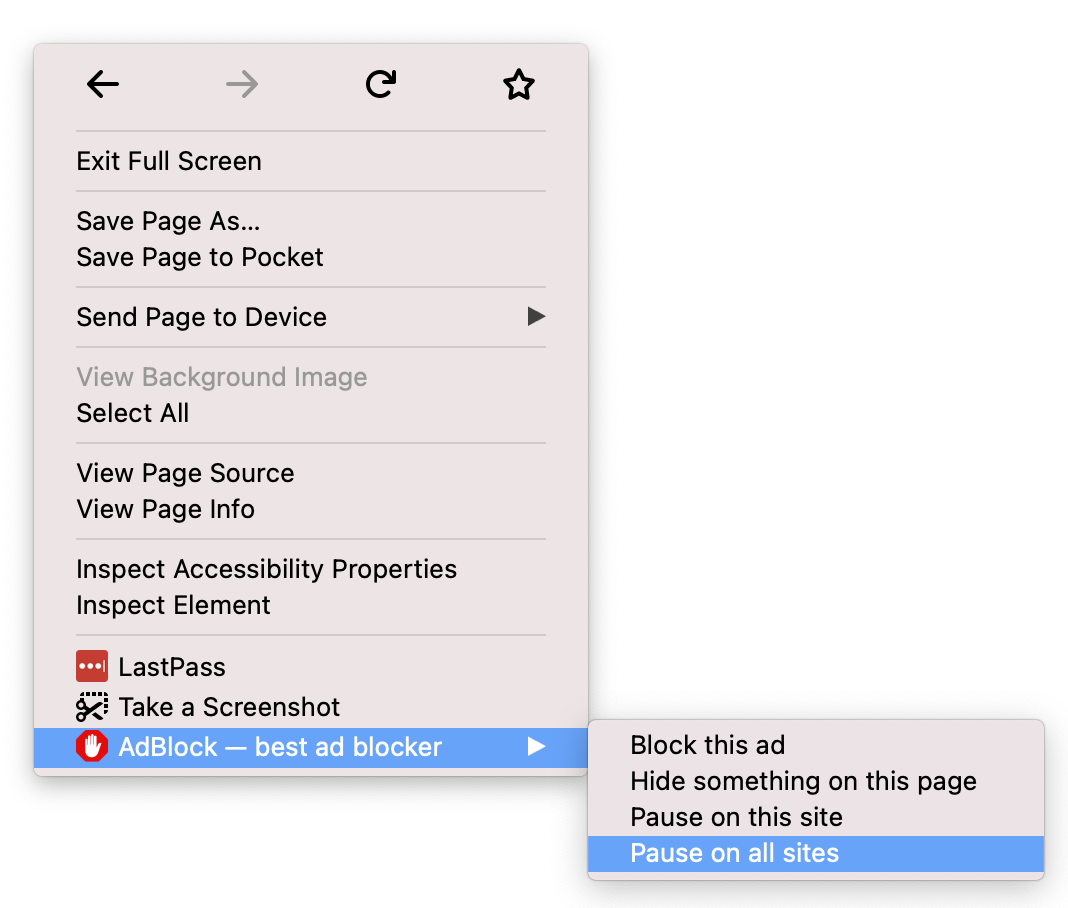
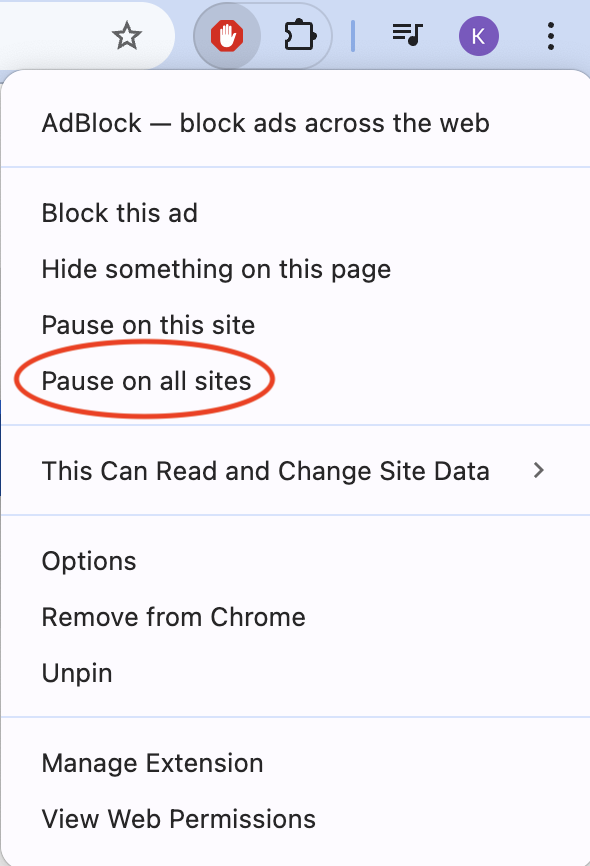
Alternatively, ads can be allowed on all sites by right-clicking on the AdBlock toolbar icon and selecting Pause on this site or Pause on all sites from the menu:
Resuming ad-blocking
Right-click on the page and select Resume blocking ads from the context menu:
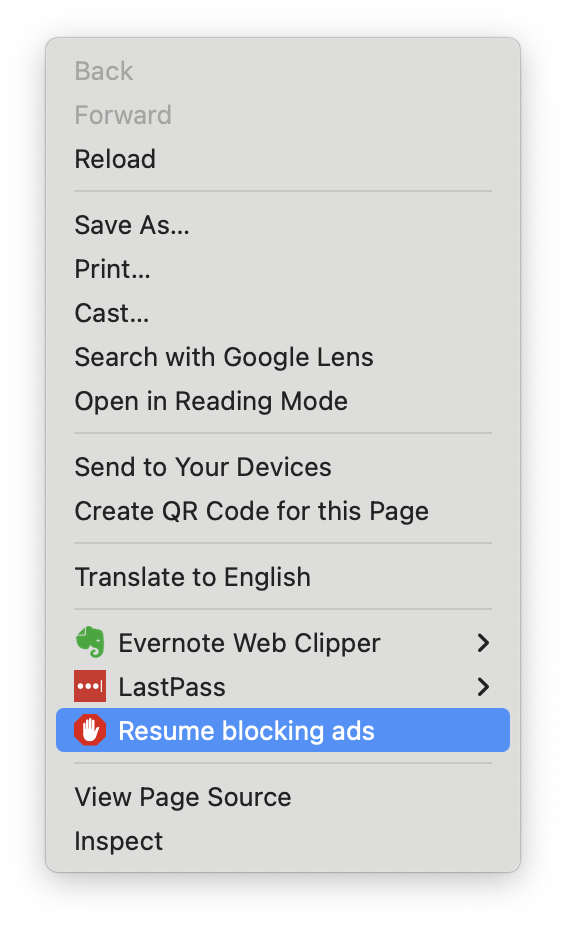
Alternatively, right-click on the AdBlock toolbar icon and select Resume blocking ads.
Allow Ads Mode (only block ads on select sites)
If you prefer to allow ads on most sites, only blocking them on specific sites, you can set AdBlock to default to "off." We call this running AdBlock in "Allow Ads Mode," showing ads on all websites, and blocking them only where you tell it to.
Allow Ads Mode is similar to pausing AdBlock on all sites but in Allow Ads Mode you can still block ads on some websites, and AdBlock will remain in Allow Ads Mode until you turn it off.
Turning on Allow Ads Mode
-
Click the AdBlock icon on your browser's toolbar. If you don't see it, be sure to pin it.
-
Click the gear icon.
-
Click the Customize tab.
-
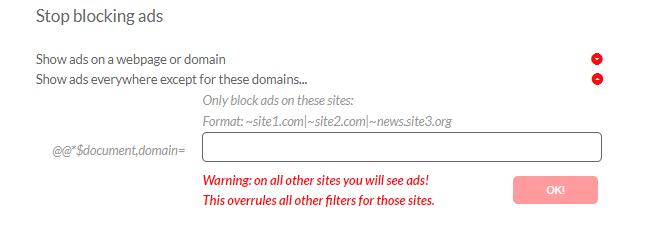
Scroll down to "Stop blocking ads" and select "Show ads everywhere except for these domains"
-
Add any sites where you prefer to keep ads blocked. This overrides all other filters.
Didn't find what you were looking for?
Let us know what this article is missing! Submit a support request so we can make sure you get the information you are looking for: Submit a ticket.