
What is it?
Custom Image Swap is a feature of AdBlock Premium. When Custom Image Swap is enabled, AdBlock will replace some of the ads it blocks with images from your collection. We will replace no more than two ads per page. We will continue to block all other ads as we do normally. We will only add images to a page when we find the perfect fit, so you may not see images on every page you visit. You must pause or disable any other ad blockers while using Image Swap.
Which file types can I use?
|
Currently, Custom Image Swap supports the following image files: |
|
|
|
*.bmp
|
How are my images stored?
You may store up to 9 images to be used in Custom Image Swap. All of your image files are stored locally and do do not reach our servers. This means we don't keep or store copies of your images anywhere on our servers, so no one but you (or someone with access to your computer) can access the images you've stored in Custom Image Swap.
How can I change my Image Swap settings in AdBlock Premium?
-
Click the AdBlock icon in your browser toolbar.
-
Click the gear icon.
-
On the Options page that opens, select Image Swap.
-
Choose between cats, dogs, landscapes, goats, oceans, food, birds, or your own custom image collection.
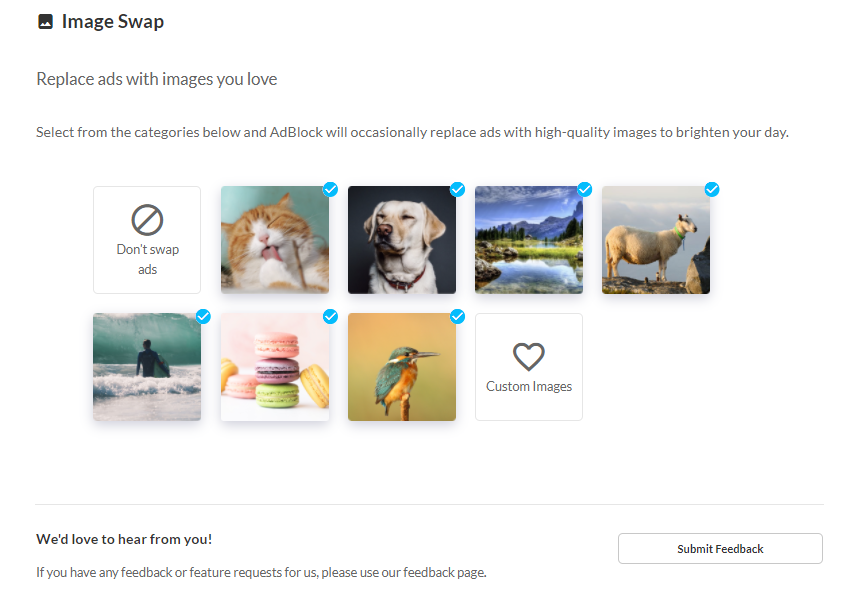
Select as many image categories as you'd like, or deselect all categories to turn Image Swap off. Your selections are saved automatically. Just close the options page when you're done.
What if I don’t see any images?
AdBlock will use two images per page, and will only swap ads when the following conditions are true:
👉 The site’s code provides the size of an ad so AdBlock can detect its size.
👉 The ad is at least 60 pixels wide by 60 pixels tall.
👉 One of your images matches the size of the ad.
You can view the size and shape of the ads on the site by pausing AdBlock and reloading the page.
If you are using more than one of our Image Swap collections simultaneously (for example cats and landscapes), you'll see your custom images less frequently.
What are the icons that appear when I move my cursor over an image?
When you move your cursor over an image AdBlock Premium has replaced an ad with, the AdBlock logo and three controls appear.
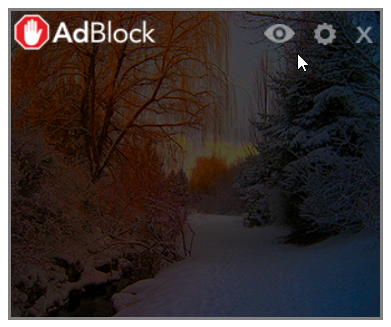
👉 Clicking the eye icon opens the image in a new tab. There you can download it or search Google for similar images.
👉 Clicking the gear icon opens the AdBlock options page.
👉 Clicking the X icon removes the picture from the page if, for instance, you don't like the image content or where the picture is placed.
Note, clicking the X icon does not remove the picture from the collection or prevent that ad from being replaced in the future.