
Install AdBlock
Select the browser you’re using below and follow the steps to install AdBlock.
AdBlock for Safari & VPN (macOS)
AdBlock VPN is now available only in the AdBlock for Safari & VPN app on macOS and is no longer offered as a stand-alone app.
AdBlock for Safari & VPN (macOS)
Install the app
-
Visit getadblock.com in your Safari for macOS browser and tap Get AdBlock Now or find AdBlock for Safari & VPN in the Mac App Store.
-
In the App Store, click Get.
-
Once downloaded, click Open in the App Store, or launch it from your Applications folder or Launchpad.
After installing the app, you'll be guided through the initial setup. Use the steps below to review or adjust your settings at any time.
Enable Safari ad blocking
Optional — skip this section if you only want to use the VPN.
-
Go to Safari > Settings > Extensions, find AdBlock, and check the box to enable it.
-
Go to Safari > Settings > Websites > Content Blockers and set "When visiting other websites" to On.
-
Go to Safari > Settings > Websites > AdBlock (under Extensions) and set "For other websites" to Allow.
Enable the VPN
Requires a Premium subscription — skip this section if you’re only using the Safari ad blocker.
After opening the app, logging in with your Premium subscription, and connecting to the VPN for the first time, AdBlock will ask permission to add VPN configurations to your Mac.
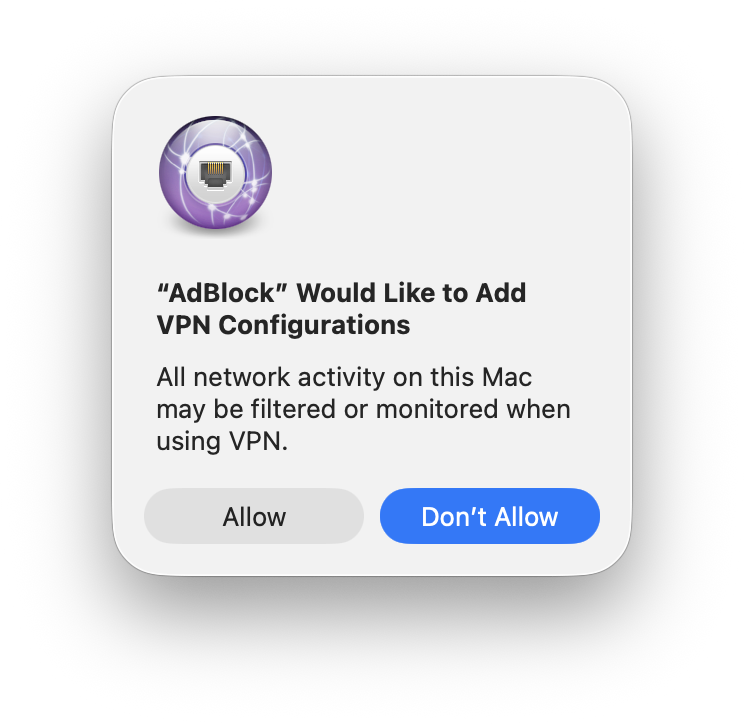
What to choose:
-
Click Allow if you want to use the VPN feature (it lets AdBlock route your traffic through our servers for network-wide ad and tracker blocking).
-
Click Don't Allow if you only want the Safari ad blocker and don't plan to use the VPN.
To change your selection later: go to System Settings > VPN, click ⓘ next to AdBlock, and click Remove Configuration to disable it. To re-enable, open the app and click Connect — you'll be prompted again.
AdBlock for Safari & VPN (iOS - iPhone/iPad)
AdBlock VPN is now available only in the AdBlock for Safari & VPN iOS app and is no longer offered as a stand-alone app.
AdBlock for Safari & VPN (iOS - iPhone/iPad)
Install the app
Requires iOS/iPadOS 17.0 or higher
-
Find AdBlock for Safari & VPN in the App Store and tap Get.
-
Follow the prompts to complete the install.
After installing the app, you'll be guided through the initial setup. Use the steps below to review or adjust your settings at any time.
Enable Safari ad blocking
Optional — skip this section if you only want to use the VPN.
-
Go to Settings > Apps > Safari > Extensions.
-
Tap AdBlock.
-
Turn on Allow Extension.
-
Scroll down to All Websites and select Allow.
Enable the VPN
Requires a Premium subscription — skip this section if you're only using the Safari ad blocker.
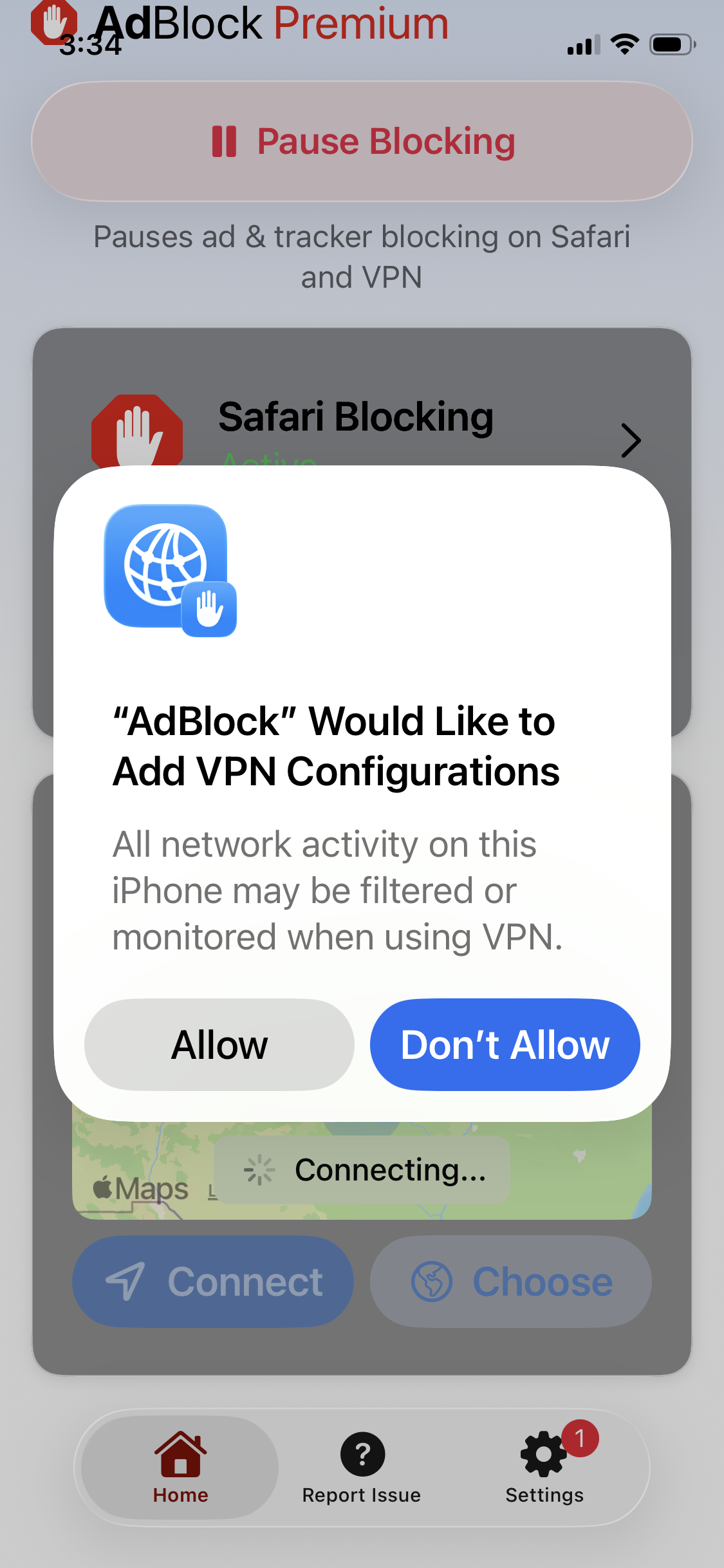
After opening the app, logging in with your Premium subscription, and connecting to the VPN for the first time, AdBlock will ask permission to add VPN configurations to your device.
What to choose:
-
Tap Allow if you want to use the VPN feature (it lets AdBlock route your traffic through our servers for network-wide ad and tracker blocking)
-
Tap Don't Allow if you only want the Safari ad blocker and don't plan to use the VPN.
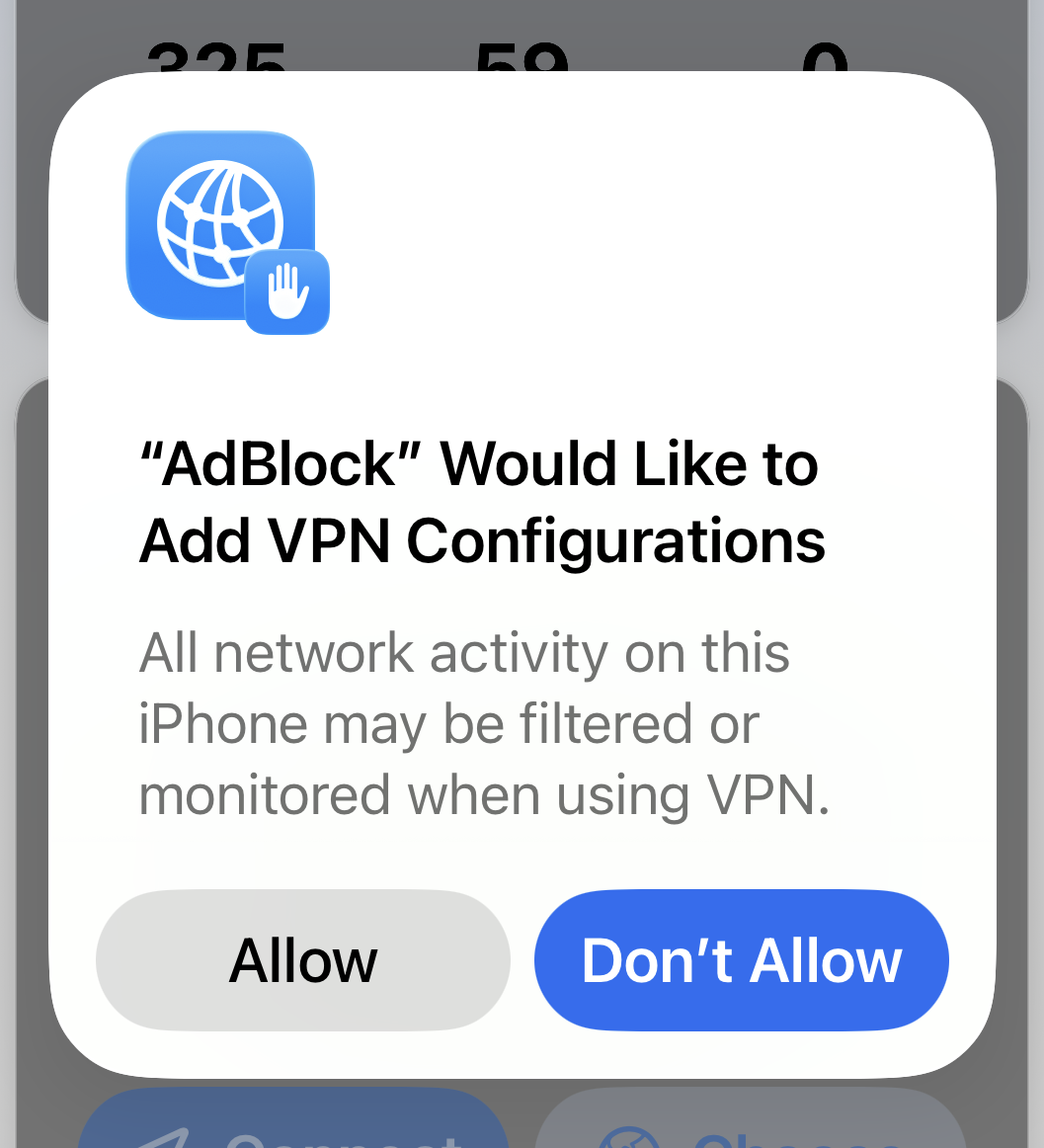
To change your selection later: go to Settings > General > VPN & Device Management > VPN, tap ⓘ next to AdBlock, and tap Delete VPN to disable it. To re-enable, open the app and tap Connect — you'll be prompted again.
Can I install AdBlock on my smart TV?
While we may offer this as an option in the future, we don't currently provide ad blocking on smart TVs.