If you used AdBlock's manual ad blocking feature and accidentally blocked too much and the page isn't working now, here's how to undo it.
How do I get the missing content back?
-
Open the page with missing content.
-
Click the AdBlock icon on your browser's toolbar.
-
Click the three dots on the menu.
-
Click Undo my hidden items.
-
Click OK to confirm the change.
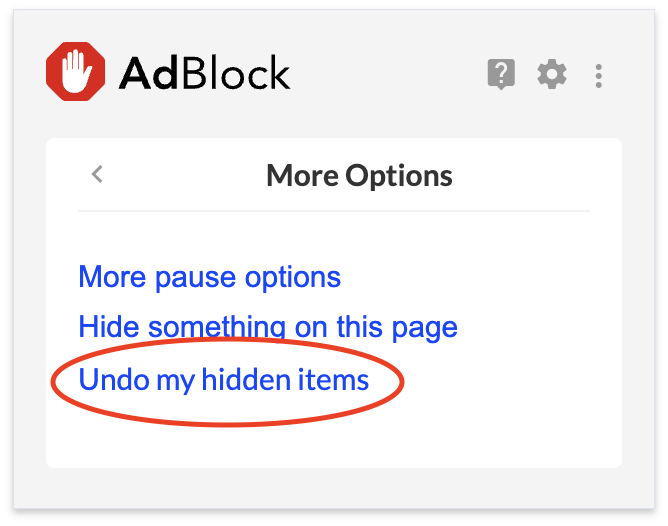
What if I don't want to undo all the hidden items on a page?
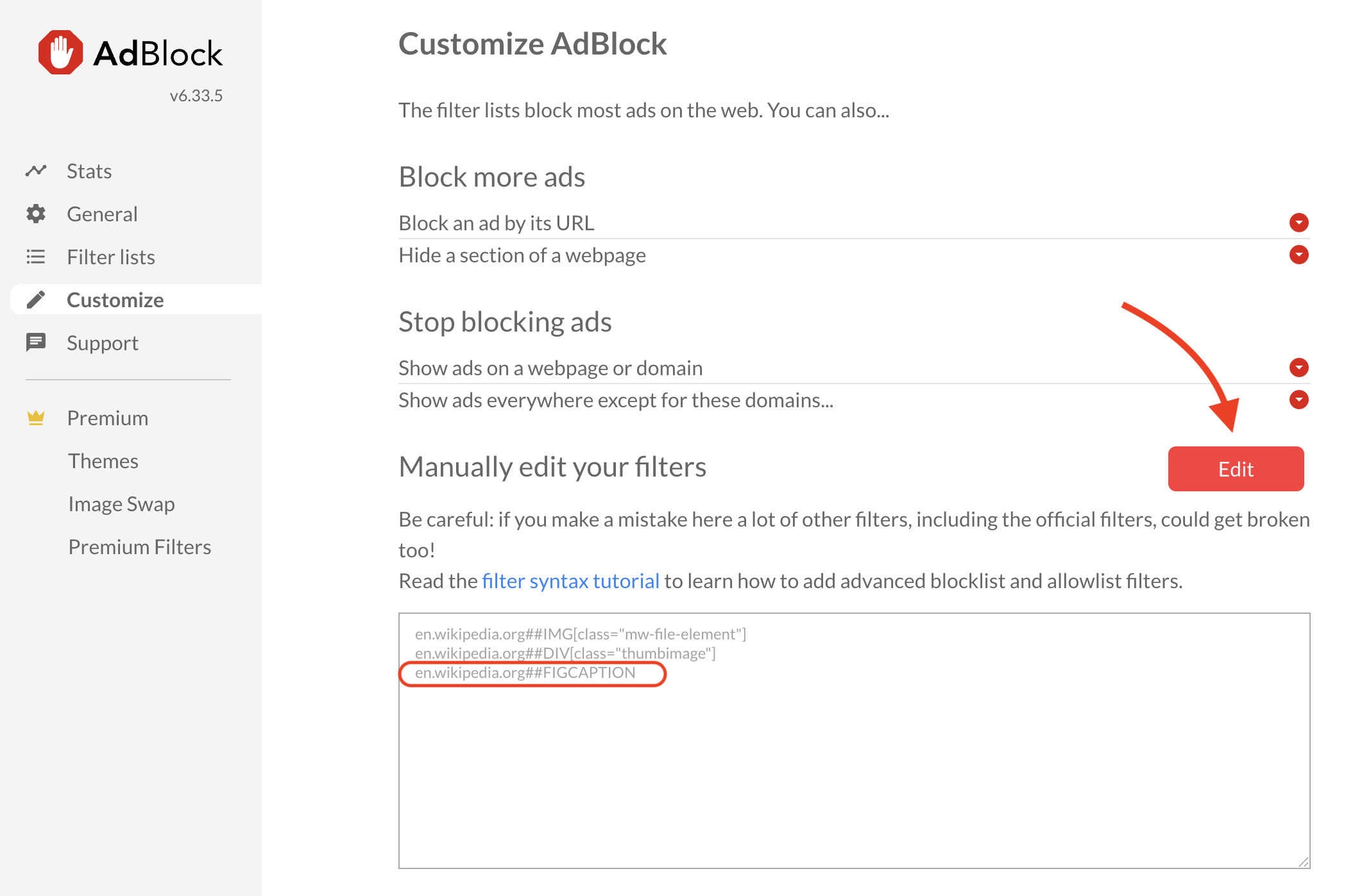
If you have multiple hidden items on a page, here's how to manually remove only the custom filters you no longer want:
-
Click the AdBlock icon on the toolbar.
-
Click the gear icon.
-
On the Customize tab, click Edit.
-
Optional: Select all the text in the custom filters box and copy it outside of AdBlock for safekeeping.
-
Look for the specific custom filter you no longer want and delete it.
-
Click Save.
-
To see the change, reload the webpage where you were seeing the problem.
Why did the wizard block more than I selected?
The AdBlock hiding wizard works by targeting the HTML tags or attributes of the elements you select on a page. This means that even if you click on just one item, AdBlock may end up hiding all items that share the same HTML tag or attribute. Since AdBlock relies only on HTML structure to identify what to block, it can’t always distinguish between similar items. This approach helps prevent important page content from being blocked, but it also means you’ll want to be careful about what you choose to hide. Go slowly and check your selections as you go to avoid hiding useful content or breaking parts of the page.
Keep in mind that the hiding wizard doesn’t always work perfectly. Some ads are built in ways that make them indistinguishable from real page content, so it might not be possible to hide them without also removing parts of the site you want to see.