
Whether you've already paid for AdBlock Premium and need to unlock your existing upgrade on additional browsers or profiles, or you need to purchase it for the first time, use the steps below to ensure all your extensions reflect Premium.
Important: Before unlocking Premium, you need to have the AdBlock extension installed. Check if AdBlock is installed.
How to Purchase and Activate Premium
How can I tell if Premium is active?
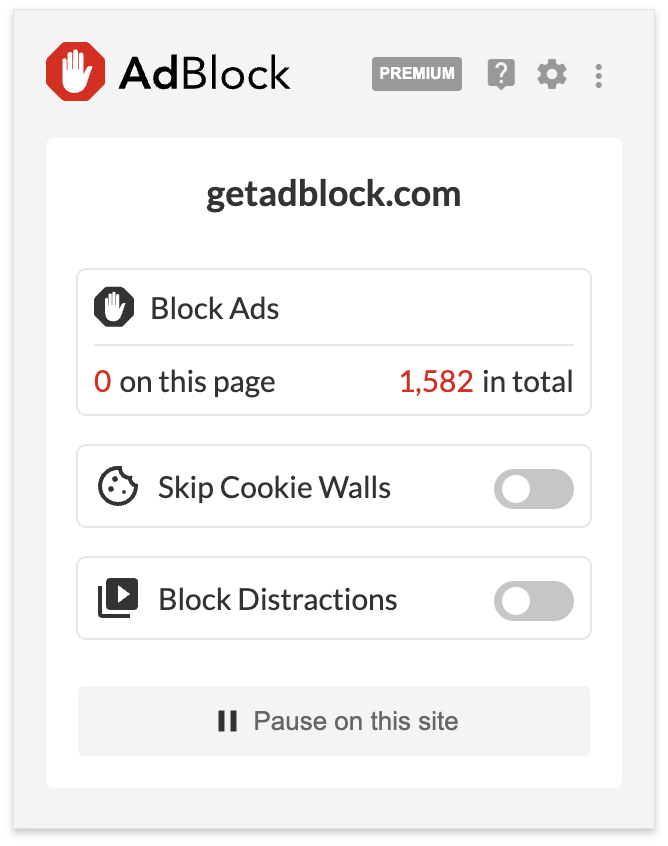
Once enabled, you will see the Premium badge appearing on the AdBlock menu:
Where can I enable the Premium features?
The two Premium filter options can be toggled on and off on the pop-up menu. To enable the other features, use these steps:
-
Click the AdBlock icon on your browser's toolbar. If you don't see the icon, make sure it's pinned: How to pin the AdBlock menu to your browser.
-
Click the gear icon on the AdBlock pop-up menu.
-
On AdBlock's options page, click the Premium tab located on the left side navigation panel.
-
Use the information on the Premium tab to select and enable the Premium features.
Do I have to purchase Premium for each of my extensions?
No. You can log in with the same email on all your supported browsers and profiles; there's no need to make multiple purchases. Use the steps in the section Activate Premium above.
Can I use Premium on my mobile device? What about Safari?
AdBlock Premium is only available on desktop versions of Chrome, Firefox, and Edge. It's not available on Safari or on mobile devices.
Learn more about Premium
For other questions about Premium, please review our other articles: All about AdBlock Premium.